
New to InduQT? Follow the guides in order: create a site, load history, connect live data, then let the decision engine and Machine Doctor do the diagnosing. Each guide has a short video recorded on the live product.
Set up
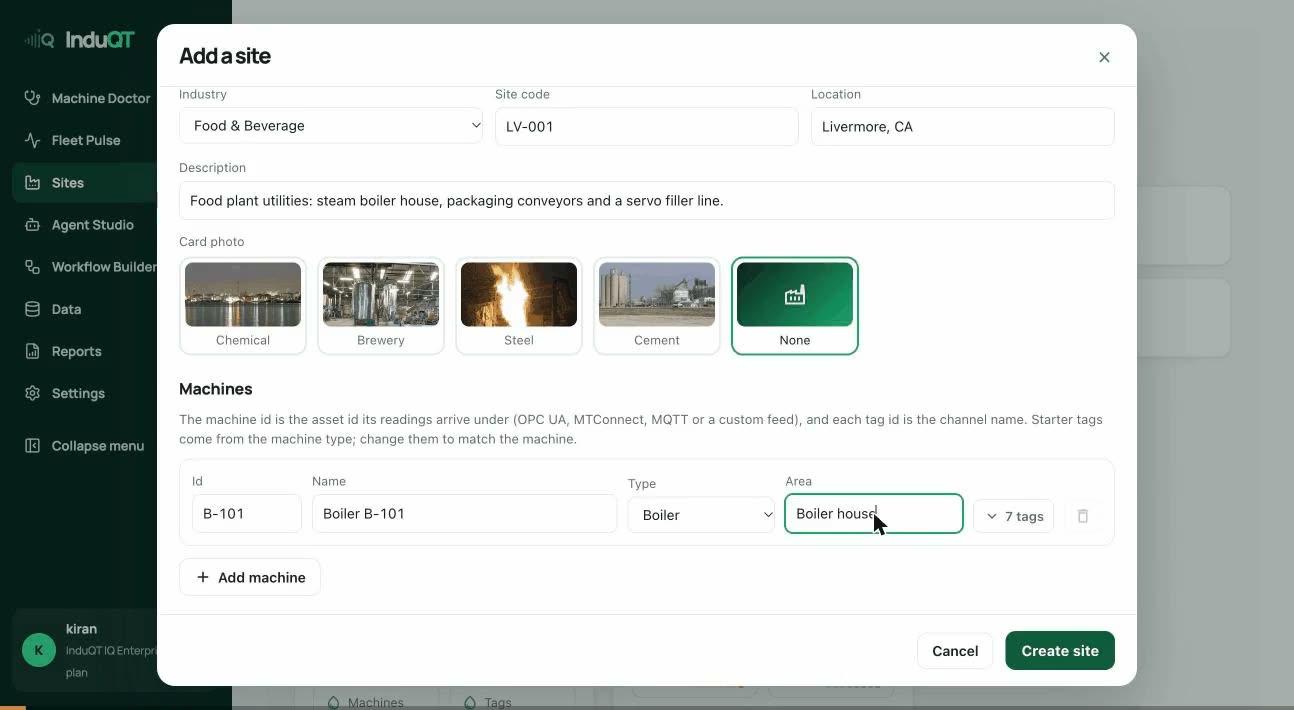 Create a site and its machines
Add a plant, name its machines and set the signals each one reports, so data from any source lands in the right place.
4 min read · video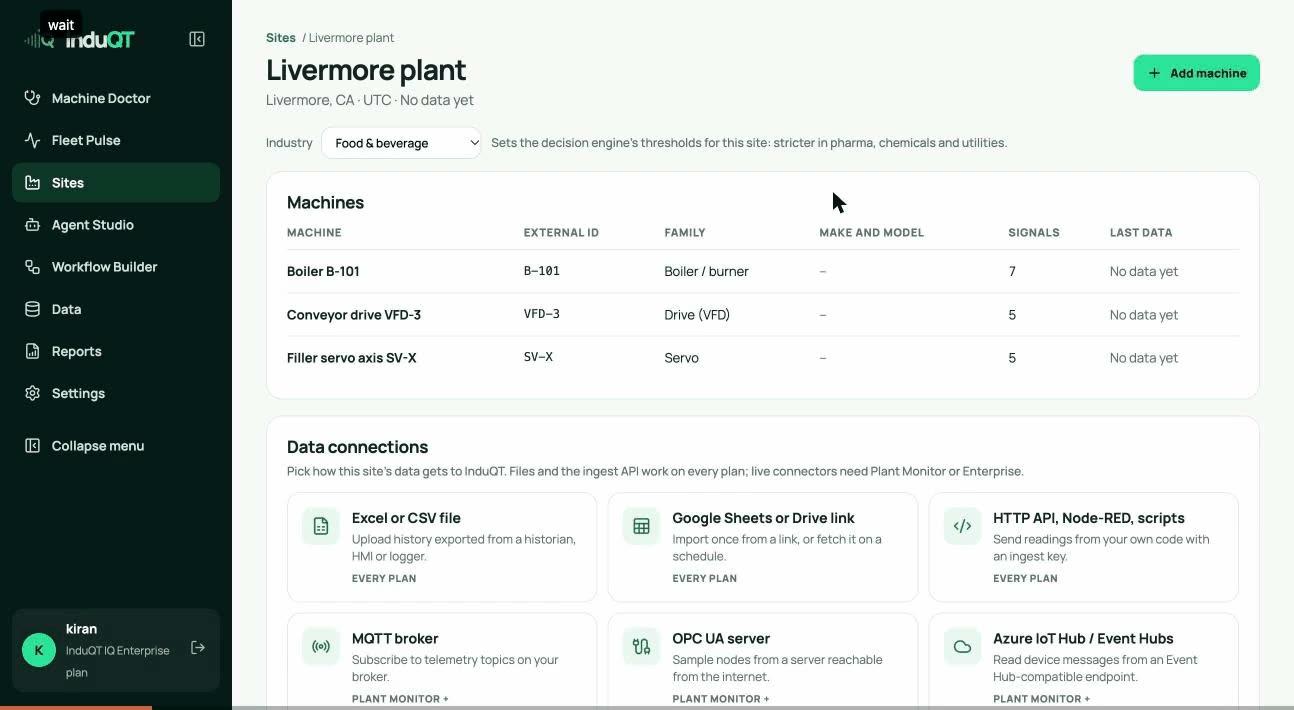 Upload history from Excel or CSV
Load past readings exported from a historian, HMI or data logger, so trends, replays and investigations have history from day one.
3 min read · video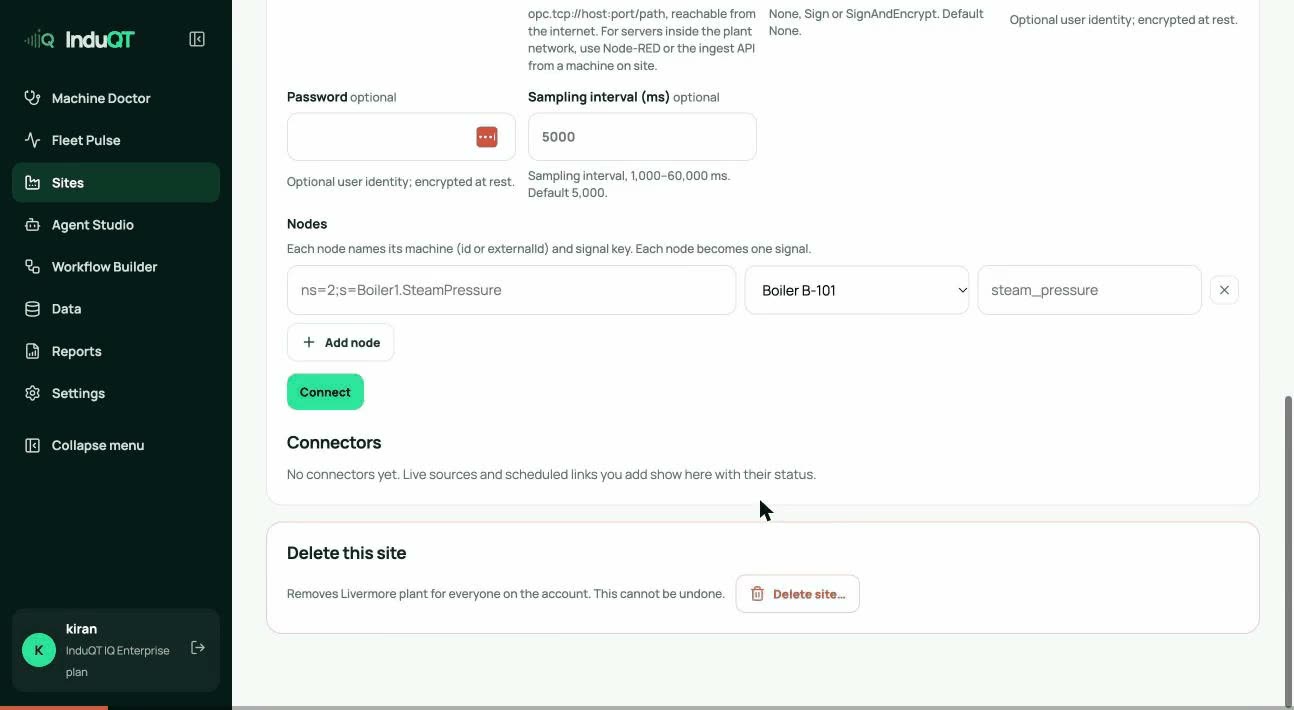 Connect live data: Node-RED, HTTP API, OPC UA and more
Stream readings from the plant: an ingest key for Node-RED and scripts, or a connector that pulls from OPC UA, MQTT, Azure IoT Hub or a scheduled link.
6 min read · videoMonitor
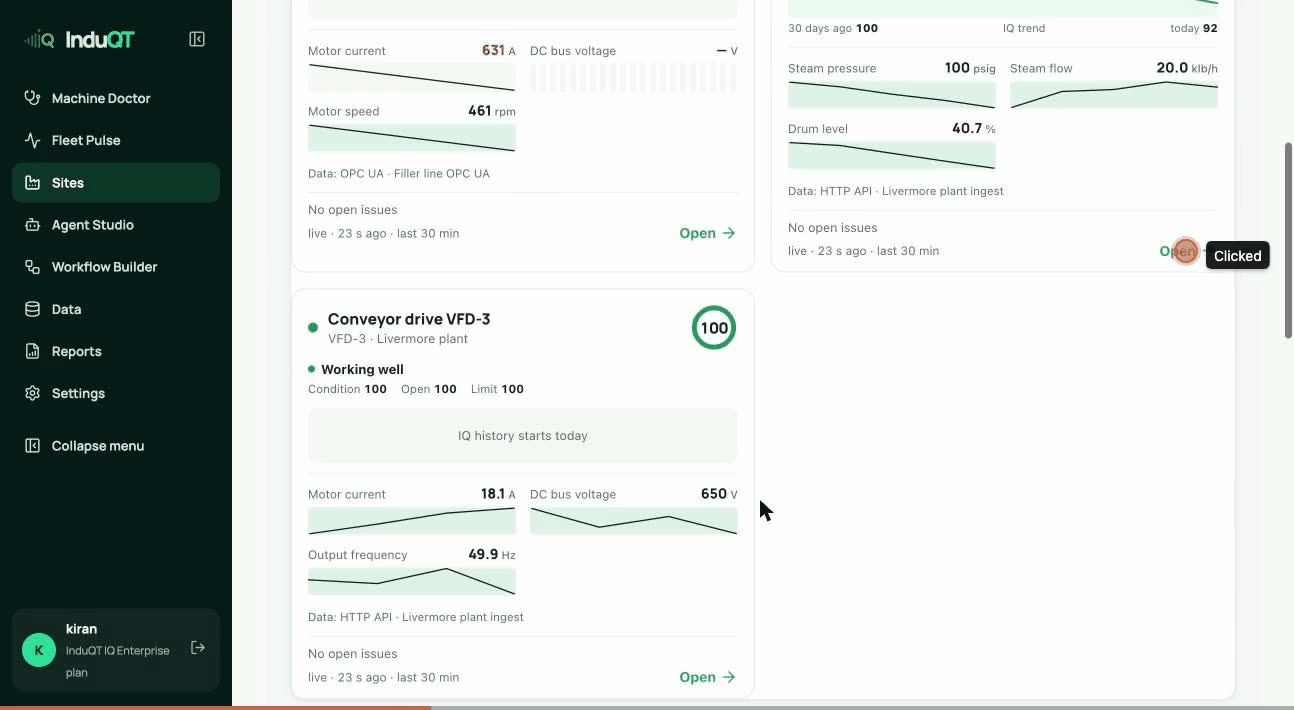 Watch machines live: sites, plant view and Fleet Pulse
See every machine’s health, the live plant view with readings on the equipment, the timeline of what changed, and the fleet across all sites.
4 min read · video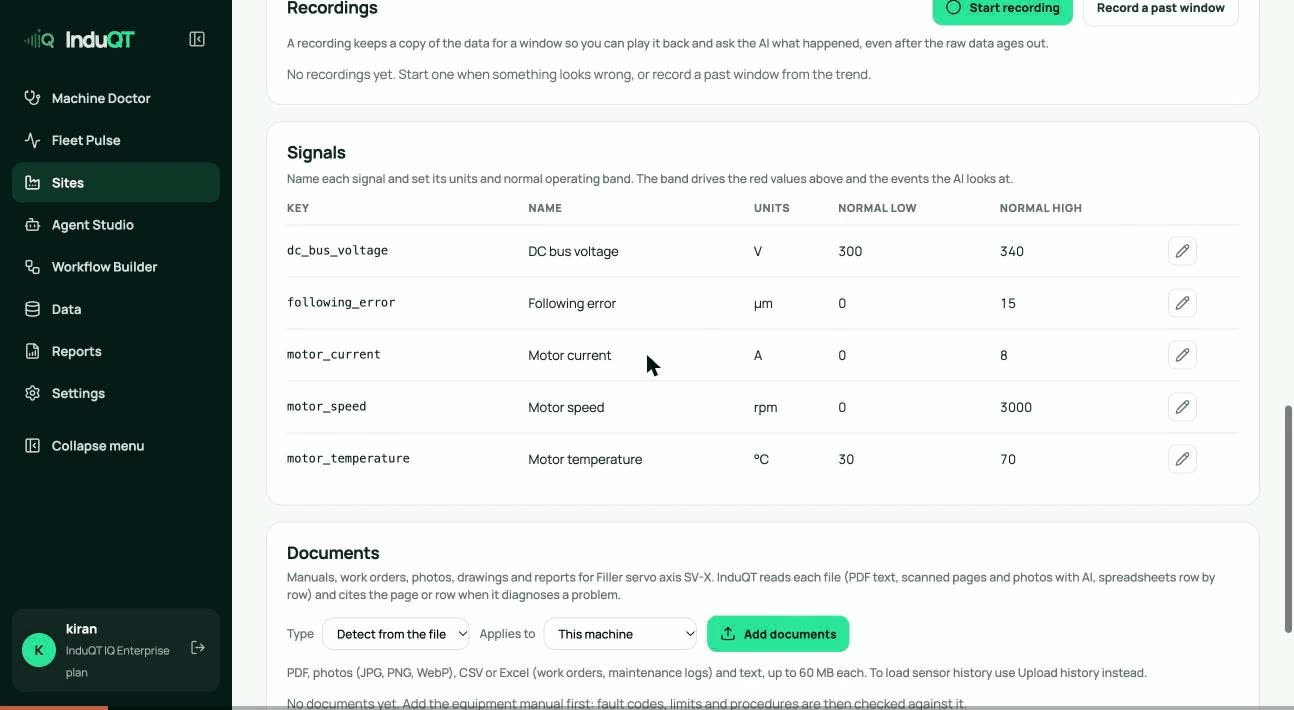 Name signals and set normal ranges
Each signal’s name, units and normal band drive the red values, the alarms and what the decision engine looks at.
2 min read · videoDiagnose
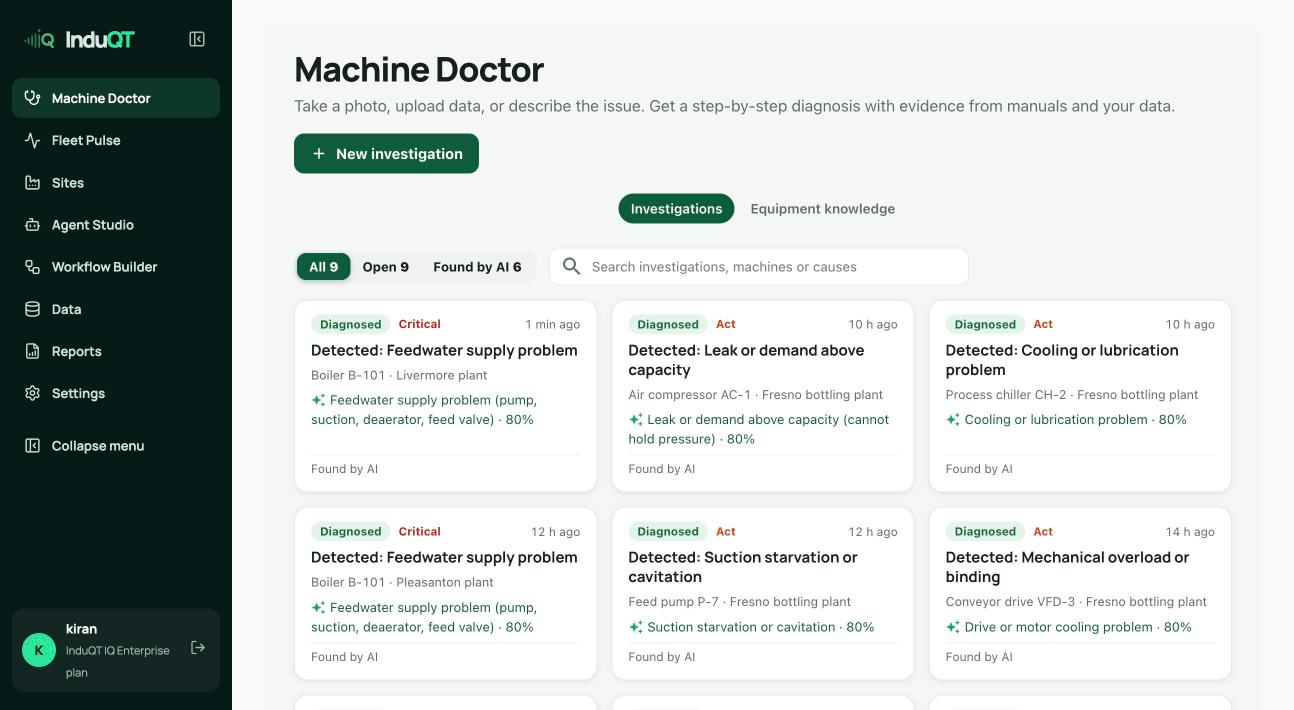 How the decision engine finds problems
InduQT watches live data, opens an investigation when a machine leaves its normal range, ranks the likely causes and says what to check first.
3 min read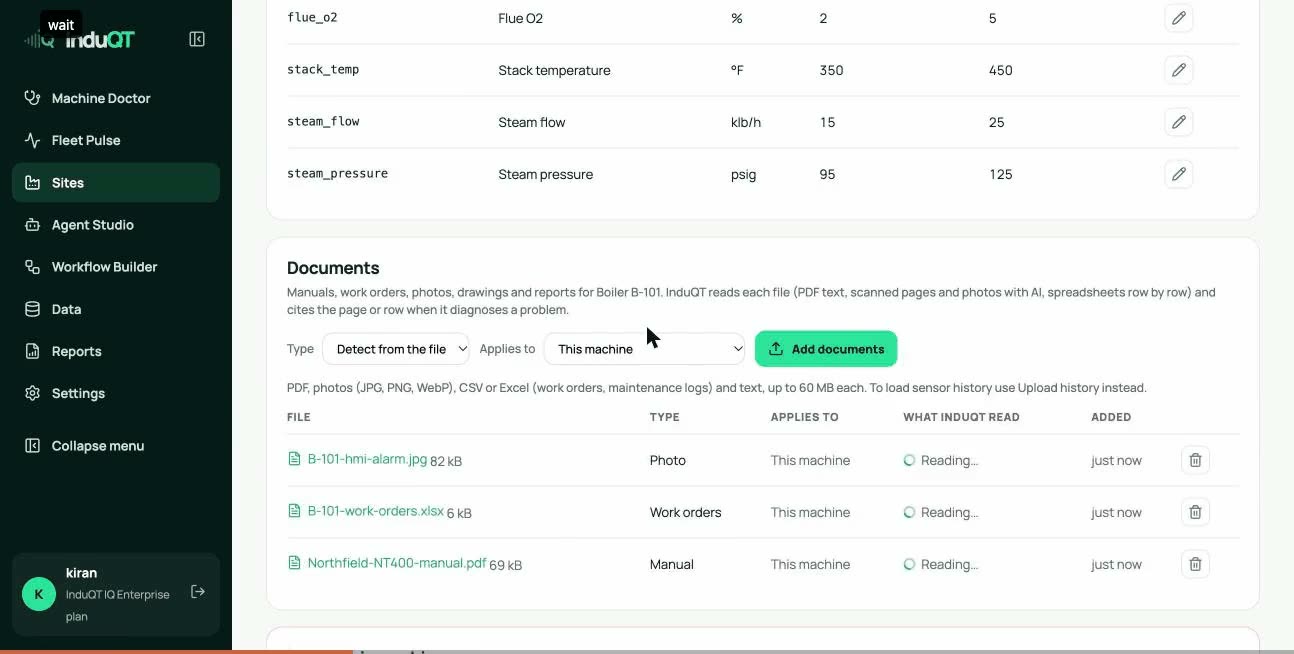 Add manuals, work orders and photos
Give each machine its documents. InduQT reads them, scanned pages included, so diagnoses quote the right manual page and past work orders.
3 min read · video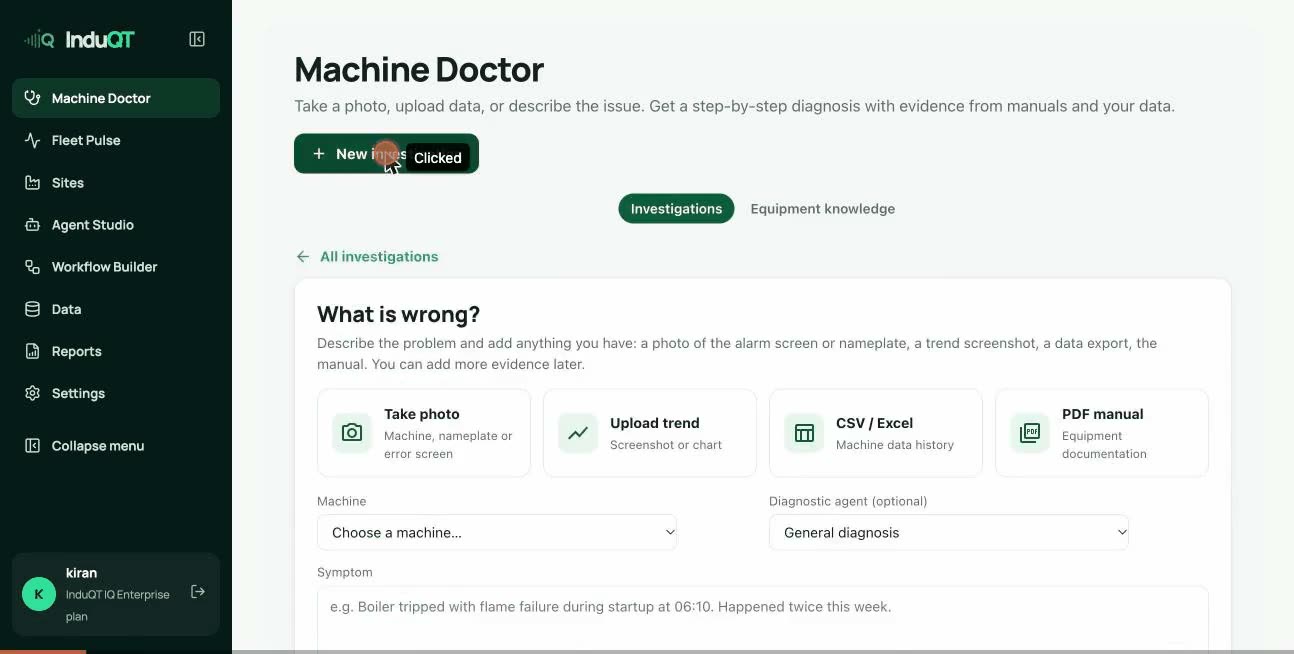 Run an investigation with Machine Doctor
Describe the problem, let InduQT read the machine’s data, manuals and history, then add evidence until the cause is confirmed.
6 min read · video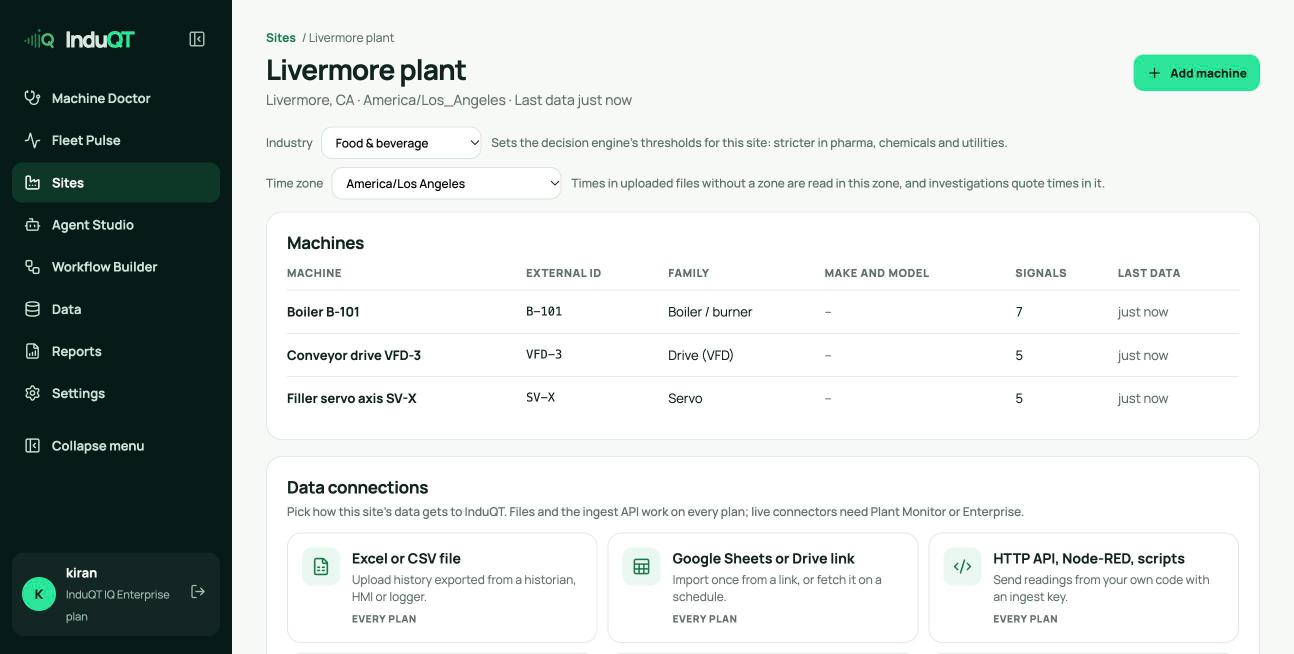 Site settings, time zones and deleting