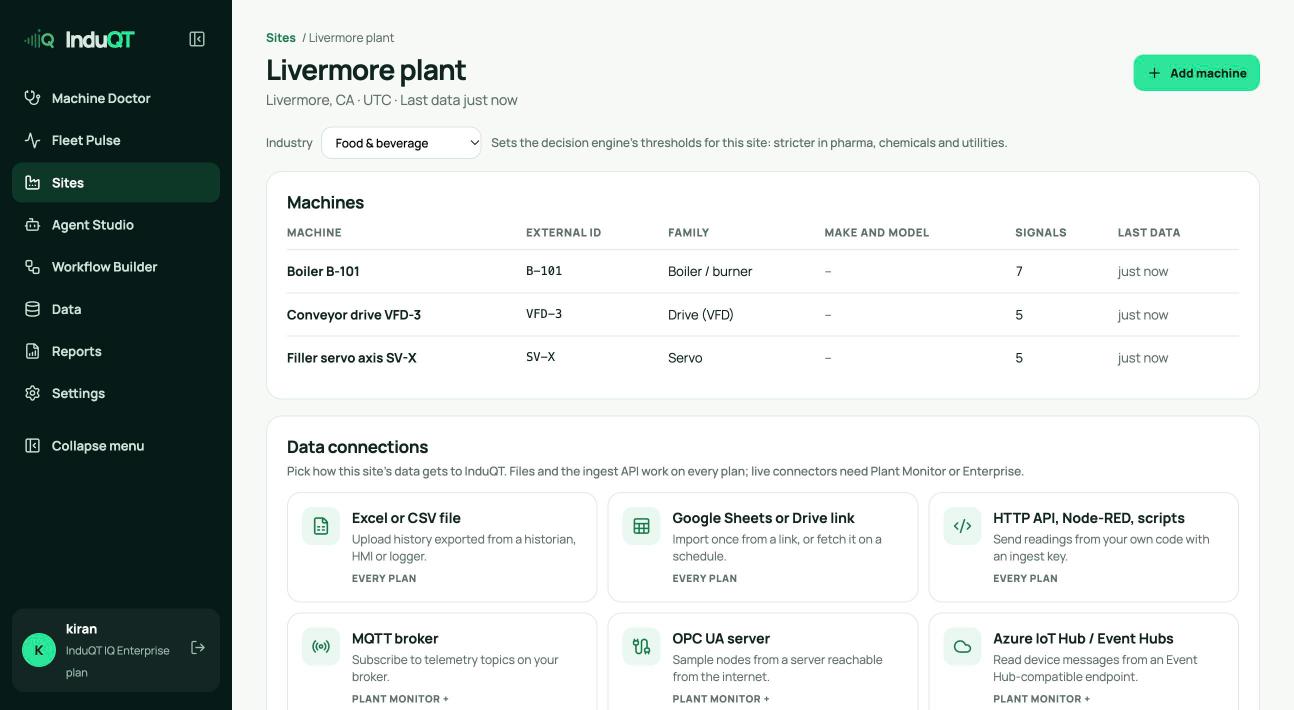
Pick how the data gets in
Excel or CSV and Google Sheets links work on every plan. HTTP API, Node-RED and scripts work on every plan with an ingest key. MQTT, OPC UA and Azure IoT Hub / Event Hubs connectors need Plant Monitor or Enterprise.
For servers inside the plant network, which the internet cannot reach, run Node-RED or a small script on site and send to the ingest API.
Node-RED, scripts and the HTTP API
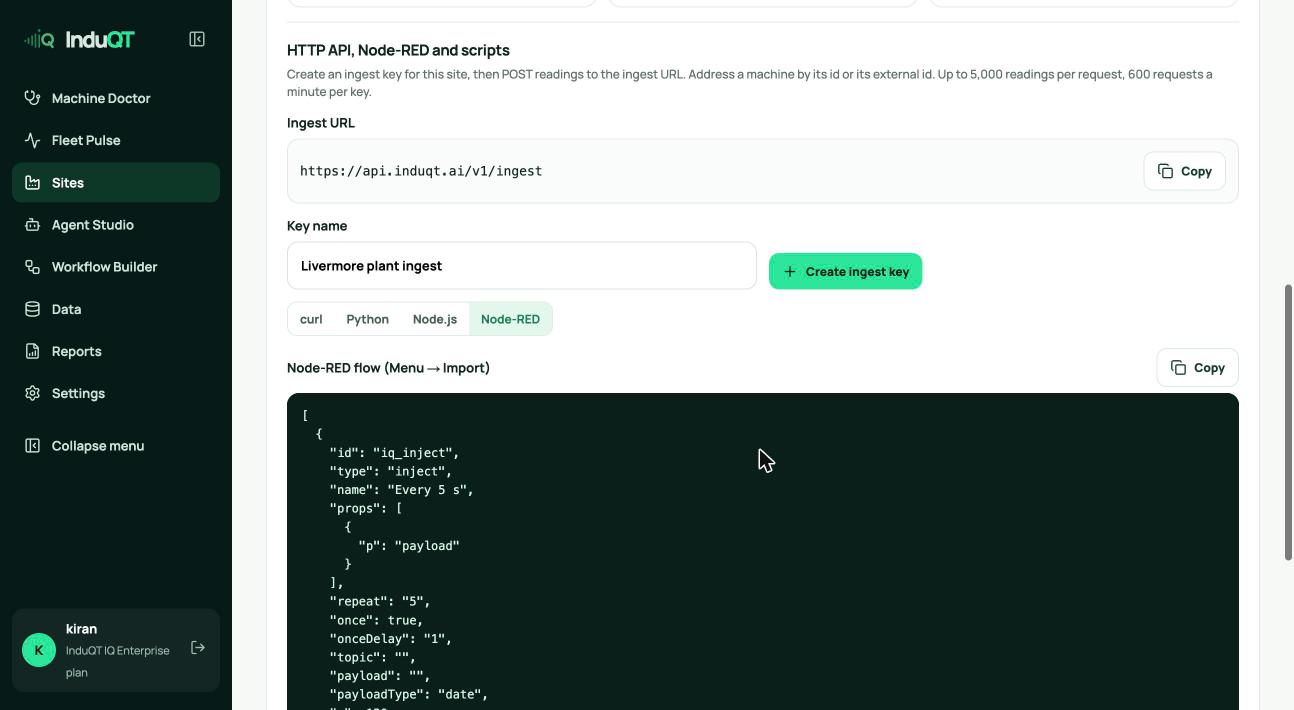
Up to 5,000 readings per request and 600 requests a minute per key.
- In Data sources choose HTTP API, Node-RED, scripts.
- Name the key and click Create ingest key. Copy it straight away: it is shown once and can only write data to this site.
- Pick the curl, Python, Node.js or Node-RED tab. For Node-RED, copy the flow, then in Node-RED use Menu → Import, and set the key in the flow’s environment.
- Address each reading with the machine id (or its InduQT id) and send values by signal key.
Tip: Revoke a key any time in Settings → API keys. Deleting a site also revokes the keys limited to it.
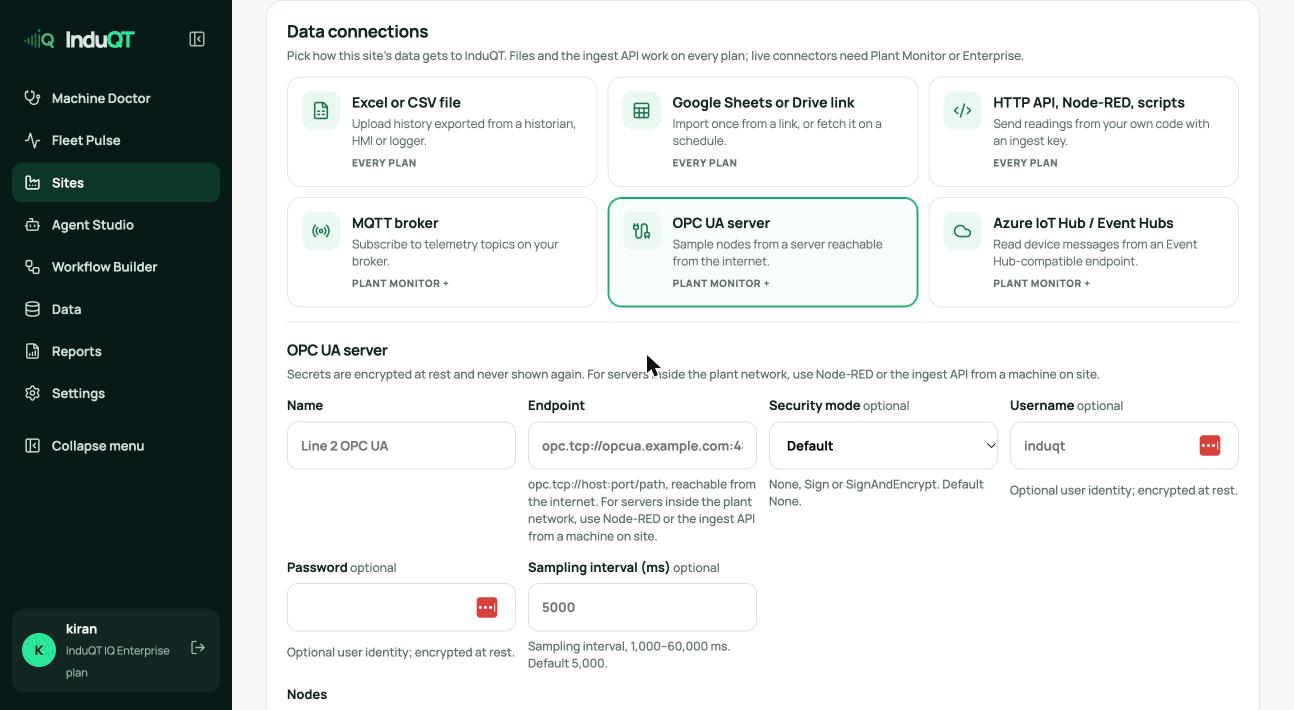
OPC UA server
- Choose OPC UA server. Give the connector a name and enter the endpoint (opc.tcp://host:port/path).
- Set the security mode and a username and password if the server needs them. They are encrypted and never shown again.
- Add one row per node: the node id (for example ns=2;s=Line1.Motor.Speed), the machine it belongs to and the signal key.
- Click Connect. The connector shows Connecting, then Connected with a message count once the first values arrive (usually within 30 seconds).
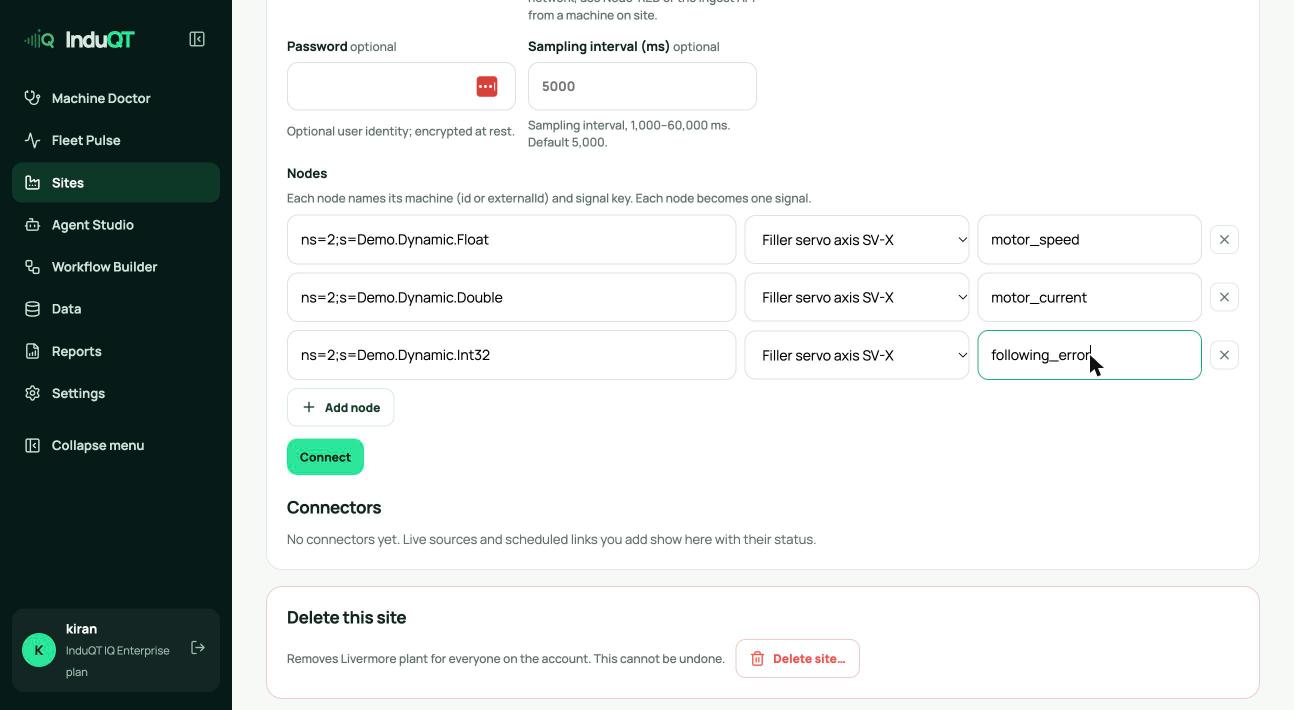
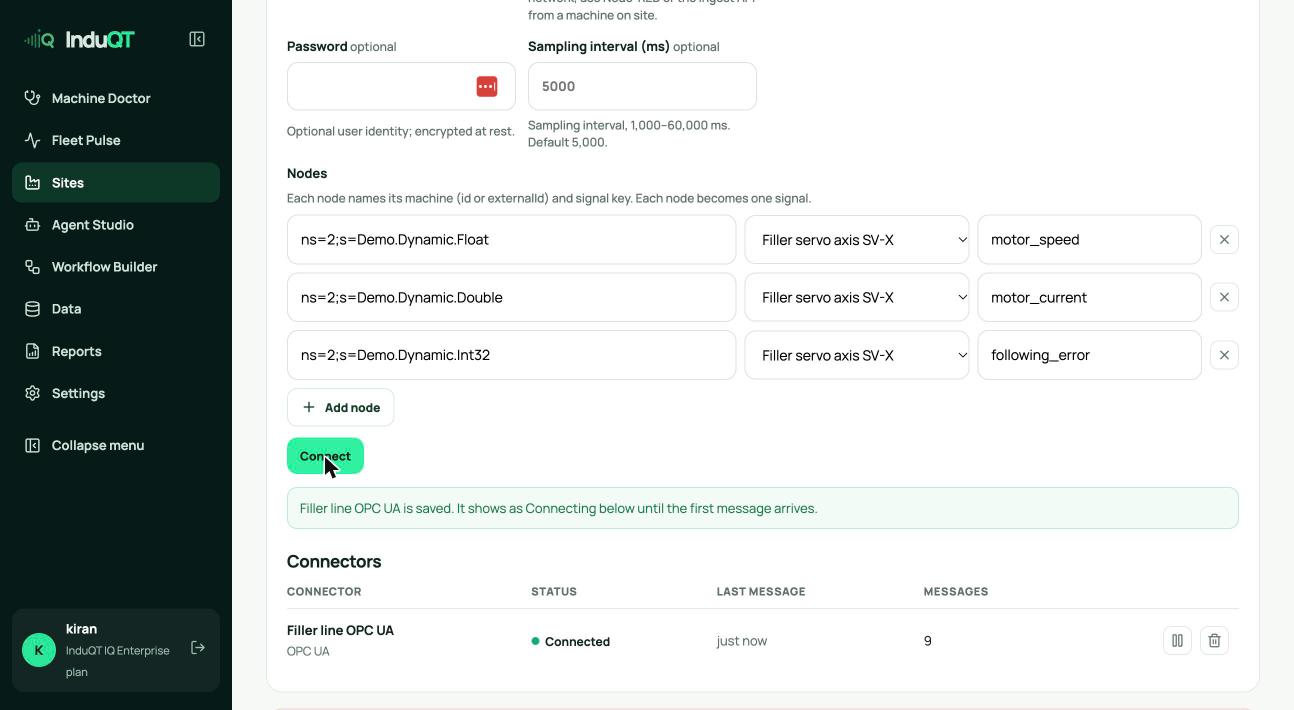
Tip: Pause stops a connector without losing its settings. A red status shows the server’s last error.
MQTT, Azure IoT Hub and scheduled links
MQTT: give the broker URL and topic filters; the machine comes from a topic level or a payload field.
Azure IoT Hub / Event Hubs: paste the Event Hub-compatible connection string; the device id can name the machine.
Google Sheets or a CSV link: import once, or fetch it on a schedule (every 1 minute to every day).
The developer docs list every option: induqt.ai/docs/connectors.
Check that every machine is live
The site’s machine table shows Last data for each machine. “just now” on every row means all sources are flowing.